 Snap Eighteen
Get Event-Ready: Phone Camera Settings to Check
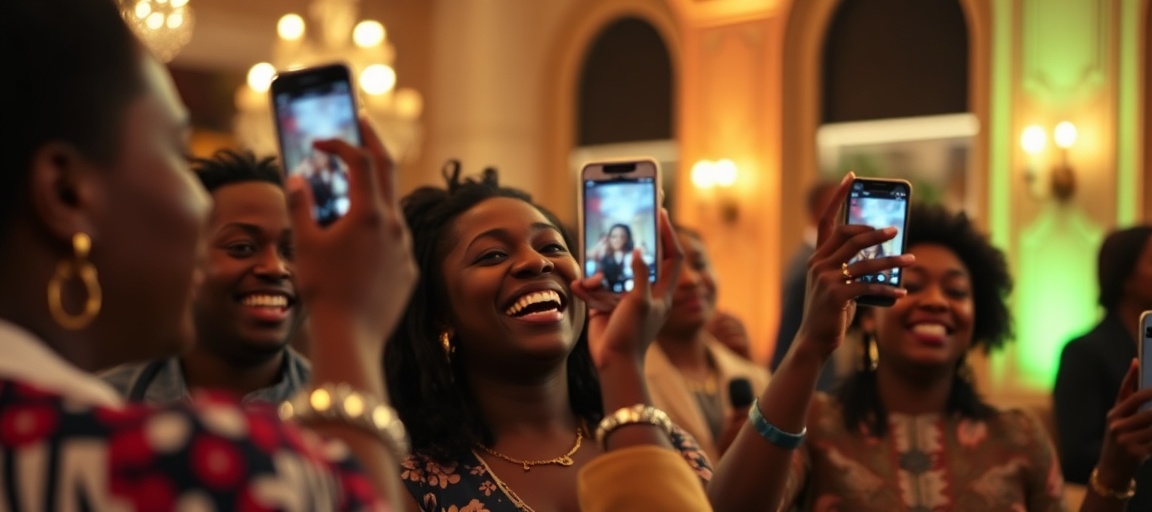
Adjust a few key phone camera settings before your next event for better photos and a smoother experience.
Preparation is Key
Taking a few minutes to adjust your phone's camera settings before an event can significantly improve your photos. These small changes help you capture clearer, more shareable images.
You can avoid common issues like blurry shots or full storage. This allows you to focus on enjoying the event itself.
Knowing your camera is optimally set up means you will capture every moment confidently.
Turn Off Live Photos
Live Photos capture a short video clip lasting a few seconds before and after you press the shutter button. While sometimes fun, this feature creates much larger file sizes for each photo.
These larger files quickly fill your phone's storage. They also take longer to upload to cloud services or share with others.
For most event photos, a single, crisp still image is more practical. To turn Live Photos off, open your camera app. Look for the Live Photo icon, often represented by concentric circles. Tap it until it is off; the icon usually turns white or has a diagonal line through it. This setting often resets, so check it before each new event.
Set to Highest Photo Quality
Your phone's camera can take photos at various quality levels. Higher quality settings capture more detail and produce sharper images.
For events, you always want the best possible detail. This allows you to crop photos, zoom in on subjects, or print them later without significant loss of clarity.
To adjust this, go to your phone's main Settings app. Scroll down and tap on 'Camera'. Look for options like 'Formats' or 'Photo Capture'. Select the highest resolution available, often labeled 'High Efficiency' or 'Most Compatible' if given a choice. Ensure you are not accidentally set to a lower quality for faster sharing.
Control Your Flash
The automatic flash on a phone often creates harsh, direct light. This can make subjects appear flat, wash out colors, or cause unwanted red-eye.
For indoor events, prioritize using available light sources. Position yourself to use natural light from windows or the softer ambient lighting of the venue.
Turn off 'Auto Flash' in your camera app settings. Use the flash only when absolutely necessary, such as in very dark conditions where no other light is present. Sometimes, a friend holding their phone's flashlight can provide a softer, continuous light source that looks better than a direct flash.
Turn On Grid Lines
Grid lines divide your camera screen into nine equal sections, creating a 3x3 grid. This visual guide is extremely helpful for improving photo composition.
The 'rule of thirds' is a photography principle suggesting that placing your main subject along these lines or at their intersections makes photos more balanced and visually engaging.
To enable grid lines, open your phone's main Settings app. Navigate to the 'Camera' section. Find the 'Grid' toggle and turn it on. You will then see the lines overlaid on your camera's viewfinder, helping you frame your shots more effectively.
Check Video Resolution
If you plan to record video at the event, it is important to check your video resolution settings beforehand. Common options include 720p, 1080p, and 4K.
1080p (Full HD) offers a good balance of high quality and manageable file sizes. It is suitable for most sharing and viewing purposes. 4K resolution provides exceptional detail but generates very large files. These files can quickly consume your phone's storage and take a long time to upload or share.
For general event videos, 1080p at 30 frames per second is often the best compromise. You can usually find this setting within your phone's 'Camera' section in the main Settings app, under 'Record Video'.
Understand HDR (High Dynamic Range)
HDR, or High Dynamic Range, is a feature that helps capture detail in both the brightest and darkest parts of a photo. It works by taking multiple exposures at different brightness levels and then combining them into one balanced image.
Use HDR in high-contrast scenes, such as a bright outdoor setting with deep shadows, or an indoor shot with a very bright window. It helps prevent blown-out highlights and completely black shadows.
Be aware that HDR can sometimes cause issues with moving subjects. If people are moving quickly, they might appear blurry or ghosted in the final HDR image. In such situations, consider turning HDR off or setting it to 'Auto', allowing your phone to decide when it is best to apply the effect.
Clear Your Storage
Before attending any event, always check the available storage space on your phone. Running out of space during an event means you could miss capturing important photos or videos.
Take a few minutes to delete old, unneeded photos, videos, or unused apps. If you have many files, consider moving them to a cloud storage service or transferring them to a computer.
This simple pre-event check ensures you have ample room to capture every moment without interruption. It avoids the frustration of seeing a "storage full" message right when you want to take a picture.
Questions
Should I use portrait mode for event photos?
Portrait mode blurs the background, focusing on one subject. It works well for individual portraits. For group photos or capturing the overall event atmosphere, standard photo mode is usually better.
My photos look dark indoors. What can I do?
Phone cameras struggle in low light. Avoid using the direct flash. Instead, look for brighter areas, use available ambient light, or try to get closer to your subjects. Some phones have a 'Night Mode' feature that can help in very dim conditions.
How can I share my event photos easily?
Many apps let you create shared albums. Guests can add their photos to one central place. This makes it simple for everyone to see and save all the memories from the event.
What about burst mode?
Burst mode takes many photos quickly when you hold down the shutter button. It's useful for capturing fast action or ensuring you get one good shot of a moving subject. Just remember to delete the extra photos later to save storage space.
Should I edit my photos before sharing?
Basic edits like cropping, adjusting brightness, or color can improve a photo. Most phone galleries have built-in editing tools. A few quick adjustments can make a big difference in how your photos look.
Snap Eighteen is a shared camera for your event. Guests scan a code, everyone’s photos land in one album, and the album closes when the event ends.
See how it works