 Snap Eighteen
Gathering Reunion Photos From All Family Members
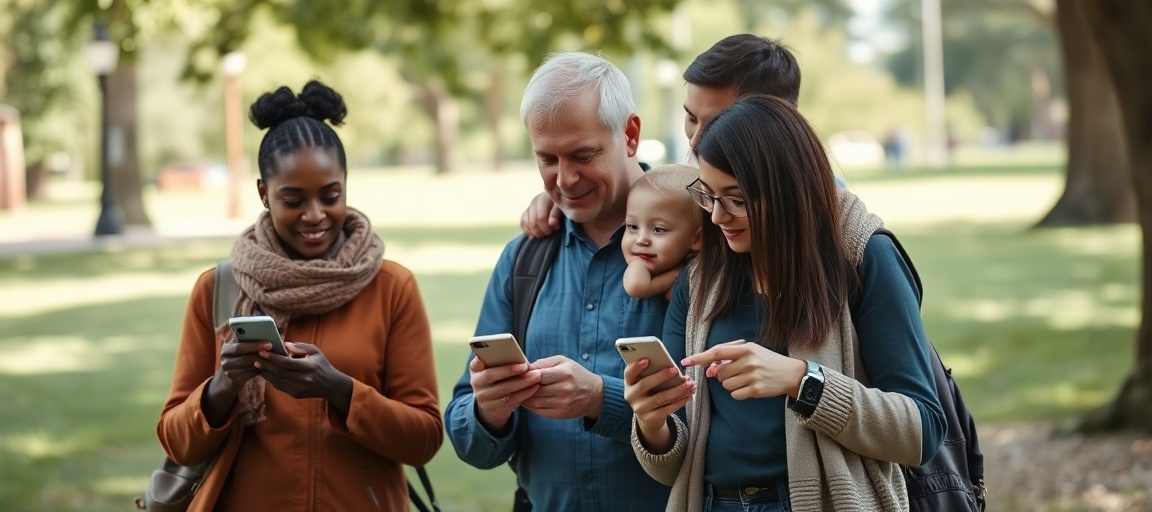
Learn practical ways to collect family reunion photos from every guest, even those who prefer not to use photo-sharing apps or cloud services.
Getting Everyone's Family Reunion Photos
Family reunions are special events. They bring together generations. Everyone takes photos, but collecting them all can be hard. Not everyone uses the same apps or cloud services.
Some family members prefer not to use new apps. They might use older phones or cameras. They might not be comfortable with digital sharing. You can still gather their photos. A little planning makes a big difference. This guide shows how to get photos from every guest.
Designate a Photo Collector
Pick one or two people to manage photo collection. This person should be patient. They should be comfortable helping others with their phones or cameras. They will be the main contact for photo submissions.
Give them a clear role before the reunion. Share their name and contact information with everyone. Guests will know who to send their photos to. This avoids confusion and lost photos.
Simple Digital Transfers: Text or Email
For guests with smartphones who avoid apps, text messages or email are simple options. Most phones can send photos this way. Provide clear instructions.
To send via text: Open the Messages app. Start a new message to the designated collector. Tap the camera icon or plus sign. Select photos from the gallery. Tap send. Advise sending a few at a time for large numbers of photos.
To send via email: Open the Mail app. Start a new email to the collector's address. Tap the paperclip icon or photo icon. Select photos. Tap send. Sending photos this way might reduce their original quality, depending on phone settings.
Direct Phone-to-Phone Sharing
In-person transfers are often easiest for those less tech-savvy. You can transfer photos directly between devices. This usually keeps the original photo quality.
For iPhones, use AirDrop. Both phones must be iPhones. Both must have Wi-Fi and Bluetooth on. Hold the phones close together. Open the Photos app. Select photos. Tap the share icon. Choose AirDrop and select the recipient's device. The recipient must accept the transfer.
For Android phones, use Nearby Share. Both phones must be Android. Both must have Bluetooth and Location on. Open the Photos app. Select photos. Tap the share icon. Choose Nearby Share. Select the recipient's device. The recipient must accept the transfer.
If phones are incompatible for wireless transfer, use a USB cable. Connect the guest's phone to a laptop. Transfer photos directly to the computer. This requires the correct cable for each phone type.
Memory Cards and Older Digital Cameras
Some family members might use older digital cameras. These cameras store photos on memory cards. Bring a laptop and a multi-card reader to the reunion. This allows you to transfer photos directly from the card.
The photo collector can ask guests to bring their cameras. They can remove the memory card. Insert it into the card reader. Copy the photos to the laptop. Ensure the laptop has enough storage space.
Scanning Printed Photos
Some relatives might bring old printed photos. These are valuable additions to the reunion album. You can digitize them at the event.
Use a smartphone scanning app. Many free apps exist for both iPhone and Android. These apps use your phone's camera to take high-quality scans. They correct for perspective and glare. Or, bring a portable flatbed scanner for best quality. This is slower but provides professional-grade digital copies.
Follow Up and Organize
After the reunion, send a polite reminder. Set a clear deadline for photo submissions. Make it easy for people to send their photos. Offer to help anyone who still needs assistance.
Once collected, organize all photos. Create folders by date, event, or family branch. Back up the entire collection to a cloud service or external hard drive. This protects against loss.
Share the Final Collection
Make sure everyone gets to see the combined photos. Create a shared online album using a simple platform like Google Photos or Flickr. Send a link to all family members. Include instructions on how to view and download photos.
For those without internet access, burn the photos to a DVD or USB drive. Mail these physical copies. This ensures every family member can enjoy all the reunion memories.
Questions
What is the easiest way for older relatives to send photos?
For older relatives with a smartphone, sending photos via text message or email is often the simplest method. Provide clear, step-by-step instructions for them. In-person phone-to-phone transfers like AirDrop or Nearby Share also work well if a collector is present to help.
How can I get photos from an old digital camera?
You will need a memory card reader and a laptop. Ask the relative to bring their camera and the memory card. Insert the card into the reader connected to the laptop, then copy the photos directly. This method bypasses software or app requirements.
What if someone only has printed photos?
You can digitize printed photos using a smartphone scanning app or a portable flatbed scanner. Many apps are free and can correct for common issues like glare. A dedicated scanner provides higher quality but takes more time.
How do I share the collected photos with everyone afterwards?
Create a shared online album on a platform like Google Photos or Flickr and send a link to family members. For those without internet access, you can burn the photos to a DVD or copy them onto a USB drive. Then, mail these physical copies to them.
Snap Eighteen is a shared camera for your event. Guests scan a code, everyone’s photos land in one album, and the album closes when the event ends.
See how it works