 Snap Eighteen
Phone Camera Settings to Change Before an Event
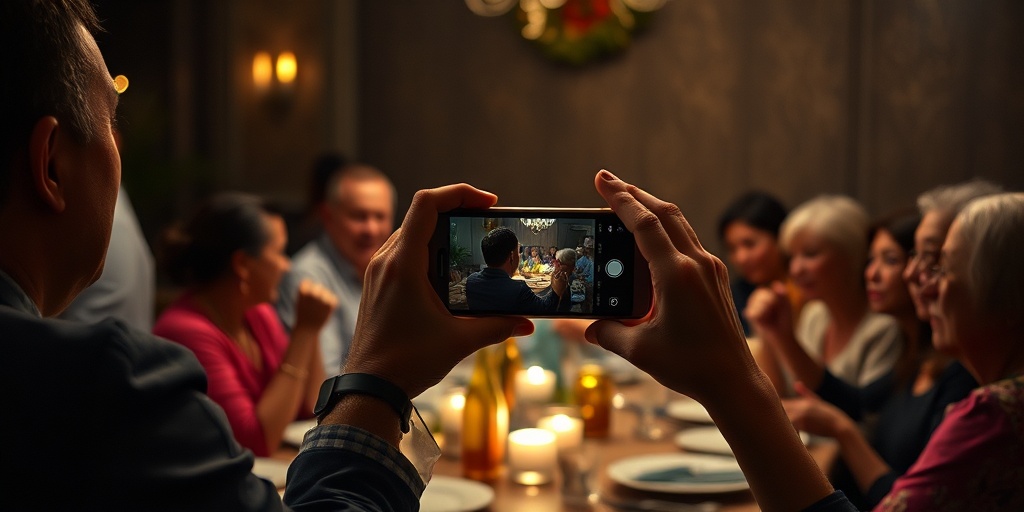
Change these six phone camera settings before stepping into a venue to get sharp, natural photos in difficult lighting.
Clean the lenses before you walk through the door
Your phone spends the day in pockets, bags, and palms. Skin oil coats the protective glass over the camera lenses. In daylight, this causes a slight loss of contrast that you might not notice. In an event space with string lights, candles, or ceiling spotlights, that same film turns every light source into a milky streak across your shot.
Use your shirt, a cotton napkin, or a microfiber cloth to wipe the camera glass clean before you go inside. Give it a firm rub in small circles. A thirty-second clean prevents blurry, washed-out pictures that no editing tool can fix later.
Turn off automatic flash
Default phone settings leave flash on auto. The camera decides whether the room is dark enough to fire, and it usually guesses wrong. Built-in phone flashes sit less than an inch from the lens. This produces harsh, flat lighting that washes out skin tones, creates bright white reflections on foreheads, and completely erases the ambient mood of the room.
Set the flash toggle to off before you start taking pictures. Modern phone sensors and processing chips can pull usable light out of dim rooms on their own. If a scene is too dark for your phone to resolve without help, move the subject closer to an existing light source, such as a bar lamp, window, or doorway.
Reduce or disable automatic night mode duration
When your phone detects low light, it automatically engages night mode. This tells the camera to hold the shutter open for two to four seconds, gathering multiple frames and blending them together. This works well for still buildings or night landscapes, but it ruins event photos.
People move constantly. They laugh, turn their heads, and gesture with their hands. A two-second exposure turns those movements into ghostly blurs. Look for the night mode icon on your screen, which typically appears as a yellow crescent moon or shutter symbol. Tap it and drag the timer down to one second or turn it off entirely. A photo with slight digital grain is sharp and usable. A photo with motion blur is ruined.
Lock exposure and pull it down slightly
Phone software assumes every photo should be evenly bright from edge to edge. In a dark venue, the phone tries to turn black shadows into mid-tones. This overexposes people's faces, blows out overhead light bulbs into solid white patches, and makes the room look unnaturally bright.
Take control of exposure manually before pressing the shutter. Tap on a person's face on your screen to set focus and metering. A small sun or slider will appear next to the focus box. Drag that slider down slightly until the background looks as dark as the room feels to your eyes. This accomplishes three things:
It protects highlights so faces are not bleached out, it allows the phone to use a faster shutter speed to freeze motion, and it preserves the actual atmosphere of the venue.
- Protects highlights so skin tones keep their natural color
- Shortens the exposure time, which reduces motion blur from hand shake or moving people
- Preserves the genuine atmosphere and contrast of the venue
Turn on the framing grid
Event venues are visually chaotic. You have waitstaff moving past, half-empty glasses on tables, tilted door frames, and crowded groups standing at different depths. Framing errors happen quickly when you try to snap a photo in two seconds before a moment passes.
Go into your phone settings app, open the camera section, and switch the grid on. This overlays faint horizontal and vertical lines across your viewfinder. Use the horizontal lines to level your horizon against door frames, tables, or backdrops. Use the vertical lines to avoid cutting people in half at the edges of the frame. A level shot looks deliberate and polished even if it was taken quickly.
Use optical zoom buttons instead of pinching the screen
When you pinch the screen to zoom in on a toast or cake cutting across the room, you are rarely using an optical zoom lens. Instead, the phone crops the center out of the main camera image and blows up the pixels. The result is a muddy, noisy picture with soft edges.
Stick to the preset numbers on your camera screen, such as 1x, 2x, or 3x. These switch between the physical lenses built into your phone. If you need to get closer than your physical lenses allow, take two steps forward with your feet. If you cannot move closer, take the photo at your camera native zoom and crop it afterward. Cropping later lets you preserve the original resolution and decide the exact crop yourself.
Decide how the photos will be collected
Taking good pictures is only half the battle. At most events, five or six people take photos all evening, and then those photos remain trapped on separate devices. Messaging apps compress the images down to tiny file sizes, while shared cloud folders require account logins and manual uploads that guests put off until they forget entirely.
If you want everyone's photos in one place without friction, set up a shared gallery beforehand. A tool like Snap Eighteen lets you put a QR code on tables or by the entrance. Guests scan the code, use their standard phone browser to upload photos directly to a central album, and the album closes automatically when the night finishes. You get everyone's shots in their original quality without chasing people down the following week.
Questions
Should I use portrait mode for event photos?
Use it sparingly for posed, individual shots in good light. Portrait mode relies on software to blur backgrounds, which often blurs out hair, glasses, or people standing just behind your subject in crowded rooms. For candid group shots, standard photo mode produces more consistent results.
Is burst mode helpful during speeches and toasts?
Burst mode is useful for brief, unpredictable moments like a champagne pop, a confetti toss, or someone blowing out candles. Hold or drag the shutter button for two seconds during the peak action, then pick the single sharpest frame and delete the rest so they do not crowd your storage.
Why do indoor event photos always look yellow or orange?
Venues often use warm incandescent or candle lighting, and your phone white balance tries to balance it against cold background lights. You can tap on a neutral gray or white object on screen to reset the balance, or quickly adjust the warmth slider in your default photo editor afterward.
Does keeping Live Photo turned on hurt photo quality?
Live Photo does not hurt the resolution of your primary still image, and it can save a shot by letting you scrub through alternate frames if someone blinked. However, it takes up twice as much storage and can cause shutter hesitation on older devices, so turn it off if space is tight.
Snap Eighteen is a shared camera for your event. Guests scan a code, everyone’s photos land in one album, and the album closes when the event ends.
See how it works